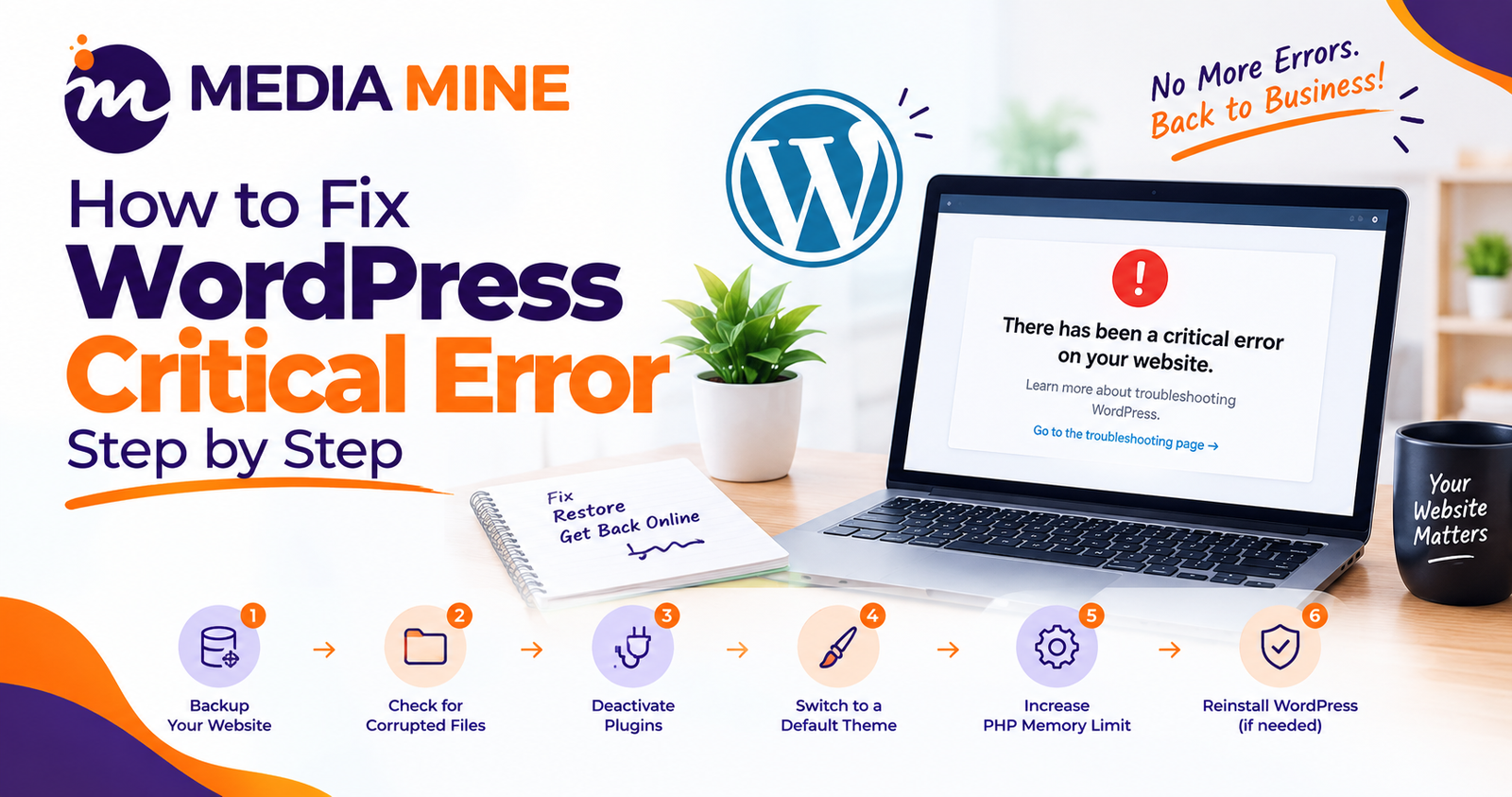
Quick answer: A WordPress critical error means a piece of code on your site (usually a plugin, a theme or an old PHP version) has crashed and WordPress cannot load. To fix it, check your admin email for a recovery mode link, turn off plugins one by one, switch to a default theme, update or roll back your PHP version, and use WordPress debugging mode to find the exact cause.
You open your website and see this message: “There has been a critical error on this website.” Your pages are gone, your customers cannot visit and you may not be able to log in either. It is scary, but this error is very common, and in most cases you can fix it yourself in 15 to 30 minutes.
This guide explains the WordPress critical error in simple words. You will learn what it means, why it happens and how to fix it step by step.
What Is the WordPress Critical Error?
The message “There has been a critical error on this website” appears when WordPress hits a fatal PHP error and cannot continue loading. Think of it like a car that suddenly stops because one part failed. WordPress is the car, and the broken part is usually a plugin, a theme or some custom code.
Older versions of WordPress showed a blank page instead. This was called the WordPress white screen of death. Newer versions show the critical error message and often send you an email with helpful details.
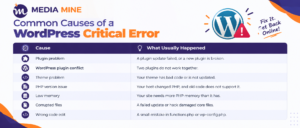
Common Causes of a WordPress Critical Error
Before You Start: Take a Backup
Before changing anything, back up your site. If you cannot log in, use your hosting panel (cPanel or similar) to download your files and database. This protects you if something goes wrong while fixing.
How to Fix Critical Error in WordPress: 8 Easy Steps
Step 1: Check Your Email for WordPress Recovery Mode
WordPress has a built-in safety feature called WordPress recovery mode. When a critical error happens, WordPress sends an email to your site’s admin address. The email usually says which plugin or theme caused the problem and includes a special login link.
- Search your inbox (and spam folder) for “Your Site is Experiencing a Technical Issue”.
- Click the recovery mode link in the email.
- Log in to your dashboard.
- WordPress will show the broken plugin or theme. Deactivate it.
If this works, your site will load again. If you did not get an email, move on to Step 2.
Step 2: Turn On WordPress Debugging Mode
WordPress debugging mode shows you the real error behind the message. It tells you exactly which file is breaking your site.
- Open your hosting File Manager or connect with FTP.
- Find the file
wp-config.phpin your main WordPress folder. - Look for the line
define( 'WP_DEBUG', false );and replace it with:
define( 'WP_DEBUG', true );
define( 'WP_DEBUG_LOG', true );
define( 'WP_DEBUG_DISPLAY', false );- Save the file and reload your site.
- Open
wp-content/debug.log. You will see the error, often with a file path like/wp-content/plugins/plugin-name/....
That path tells you which plugin or theme is the problem. Important: Turn debugging back off (false) after fixing the error, because the log can expose private details.
Step 3: Fix a WordPress Plugin Conflict
A plugin is the most common cause of this error, so test plugins next. This is especially useful for a WordPress critical error after plugin update.
If you cannot log in:
- Go to
wp-contentusing File Manager or FTP. - Rename the
pluginsfolder toplugins_old. - Reload your site. If it works, a plugin was the problem.
- Rename the folder back to
plugins. All plugins will be inactive. - Log in and activate plugins one by one until the error returns. The last one you activated is the culprit.
If you can log in: Go to Plugins, deactivate all, then activate them one at a time.
Once you find the broken plugin, you can:
- Update it to the newest version
- Roll back to the previous working version
- Replace it with a similar plugin
- Contact the plugin developer
This is also how you solve any WordPress plugin conflict: the problem appears when two specific plugins are active together.
Step 4: Check If Your Theme Is Causing the Error
If plugins are not the issue, test your theme. A WordPress theme causing critical error is common after a theme update or after editing theme files.
- Go to
wp-content/themes. - Rename your active theme folder (for example,
mythemetomytheme_old). - WordPress will switch to a default theme such as Twenty Twenty-Four, if one is installed.
- Reload your site.
If the site works now, your theme has the problem. Update it, restore a clean copy, or ask a developer to repair the code.
Step 5: Check Your PHP Version
A WordPress critical error after PHP update happens when your hosting upgrades PHP, but your plugin or theme is too old to support it. The opposite can also happen: a new plugin may need a newer PHP version than your site uses.
- Log in to your hosting panel.
- Find Select PHP Version or MultiPHP Manager.
- Try switching to a different supported version (for example, from 8.3 to 8.1, or from 7.4 to 8.1).
- Reload your site.
Use this as a short-term fix. In the long run, update your plugins and theme so they work with a modern, secure PHP version.
Step 6: Increase the PHP Memory Limit
If your debug log says “Allowed memory size exhausted”, your site needs more memory. Add this line to wp-config.php, above the line that says “That’s all, stop editing”:
define( 'WP_MEMORY_LIMIT', '256M' );If the error remains, ask your hosting provider to raise the limit.
Step 7: Reset the .htaccess File
A damaged .htaccess file can break your site.
- Find
.htaccessin your main WordPress folder. - Rename it to
.htaccess_old. - Reload your site.
- If it works, log in and go to Settings > Permalinks and click Save Changes to create a fresh file.
Step 8: Reinstall WordPress Core Files
If nothing works, core files may be corrupted.
- Download a fresh copy of WordPress from wordpress.org.
- Unzip it and upload the
wp-adminandwp-includesfolders to your site, replacing the old ones. - Do not replace the
wp-contentfolder orwp-config.php, or you will lose your data and settings.
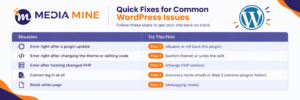
Quick Troubleshooting Table
How to Prevent the WordPress Critical Error in the Future
Fixing the error is good, but preventing it is better. Follow these habits:
- Back up regularly and always before updates
- Test updates on a staging site before updating your live site
- Use only trusted plugins that are updated often
- Delete unused plugins and themes
- Keep PHP, WordPress, plugins, and themes updated
- Avoid editing code directly on a live site
- Choose good hosting with daily backups and enough resources
Why a Critical Error Can Hurt Your Business and SEO
A site that is down loses sales and trust. If Google visits your pages during downtime, it may see errors, and long outages can lower your search rankings. After you fix the problem, it is smart to check that your pages are still indexed and ranking. Our SEO services can help you audit your site, fix technical issues, and recover lost traffic.
Need Help Fixing Your WordPress Website Error?
Not everyone is comfortable editing files, reading logs or changing PHP settings, and one wrong step can make things worse. If your site is down right now, or if the same error keeps coming back, let professionals handle it.
At Media Mine 360, our in-house team can find the root cause, fix the error safely, restore your site and set it up so it does not happen again. Whether you need emergency repair, a speed and security upgrade, or a brand-new website built on clean code, our web development services cover it all.
Website down? Contact our team today and get your WordPress site back online.
Final Thoughts
The WordPress critical error looks serious, but it is usually caused by one broken plugin, theme, or setting. Start with recovery mode, turn on debugging, test plugins and themes, then check PHP and memory. Always keep a backup, and do not hesitate to ask an expert when you feel stuck. A quick WordPress website error fix today saves you from lost customers tomorrow.
FAQs
1. What does “There has been a critical error on this website” mean?
It means WordPress found a fatal PHP error and cannot load your site. The cause is usually a plugin, theme, PHP version problem, or low memory.
2. How do I fix the critical error in WordPress if I cannot log in?
Check your admin email for a recovery mode link. If there is none, use FTP or File Manager to rename the plugins folder, then test your theme and PHP version.
3. What is WordPress recovery mode?
It is a built-in feature that emails you a special login link when a plugin or theme crashes your site. It lets you enter the dashboard and turn off the broken item safely.
4. How do I use WordPress debugging mode?
Edit wp-config.php and set WP_DEBUG to true, with WP_DEBUG_LOG enabled. WordPress will save errors in wp-content/debug.log. Turn it off after fixing the issue.
5. Why do I get a WordPress critical error after a plugin update?
The new plugin version may have a bug, may not work with your WordPress or PHP version, or may conflict with another plugin. Disable it or roll back to the older version.
6. Why do I get a WordPress critical error after a PHP update?
Some older plugins and themes do not support newer PHP versions. Switch PHP back temporarily, then update or replace the incompatible plugin or theme.
7. Is the white screen of death the same as the critical error?
They have the same kind of cause, a fatal error. The white screen shows a blank page, while newer WordPress versions show the critical error message.
8. Will I lose my data when fixing a WordPress critical error?
Not if you follow the steps carefully and take a backup first. Deactivating plugins or switching themes does not delete your posts or pages.
9. Can a critical error affect my SEO?
Yes. Long downtime or repeated errors can reduce crawling and rankings. Fix the problem fast and check Google Search Console for errors afterwards.
10. Can Media Mine 360 fix my WordPress critical error?
Yes. Our team can diagnose the error, repair your site, protect it from future crashes and improve its performance and SEO.